Figma master file as pseudocode for Flutter development
This article is a rough self translation of what I wrote on Qiita.
Summary
- Hypothesized that the reason Figma’s master files were not being maintained was due to a lack of recognition for their value.
- Created Figma as the pseudocode for **_view.dart.
- Made all the views controlled by their model and view model using the instances of Figma components.
- Expanded the master files as documentation for all the teams other than the development team.
- Elevated the value of the master files to motivate maintenance.
Challenge
It is a serious issue that Figma’s master file is not being maintained. Or worse,
There is no such thing as a master file.
When designers start working on designing with a Figma file, unable to maintain the latest version that is delivered to users, it would be a mess. And it is inevitable that the design becomes a patchwork Frankenstein.
In the first place, having a master file doesn’t make sense unless you are part of a large team.
I understand you want to justify it. There are countless reasons why people cannot create or maintain a Figma master file.
I see the lack of value placed on Figma and master files as the issue. It is not feasible to “thoroughly maintain” Figma in response to the issue of its lack of maintenance. Humans are lazy in nature and will inevitably stop maintaining it.
If we can create a master file that makes everyone happy, perhaps we will be motivated to maintain it.
Background
- About a startup with scarce dev resources (human-hours)
- The iOS and Android apps developed using Flutter.
- Work was done during a design overhaul.
- No master file in Figma at the time
- Worked on the new Figma master file around July 2023 (before the announcement of Figma’s Variables and Dev Mode).
First of all, a master file is …
A master file in Figma is a centralized document that contains a comprehensive collection of design elements and assets which are used across multiple projects within an organization. It is a key component of a design system in Figma, ensuring consistency and efficiency in the design process. – ChatGPT 4.
Method
Putting aside the compulsory maintenance, I first set the value of Figma’s master file.
- Blueprint for designers and engineers
- Document for everyone to refer to for specifications
I wanted to establish the positioning that Figma is not just for designers, but a resource for the development team and the company.
And as a policy for creating the master file, I decided to make it as close to Flutter implementation as possible. This is to have engineers feel the value as design blueprint. It goes without saying that if Figma is perceived as just something for visual placement, there would be no motivation for maintenance, let alone checking the layer structure and component properties of Figma.
Here, I introduce four good points of the master file I created.
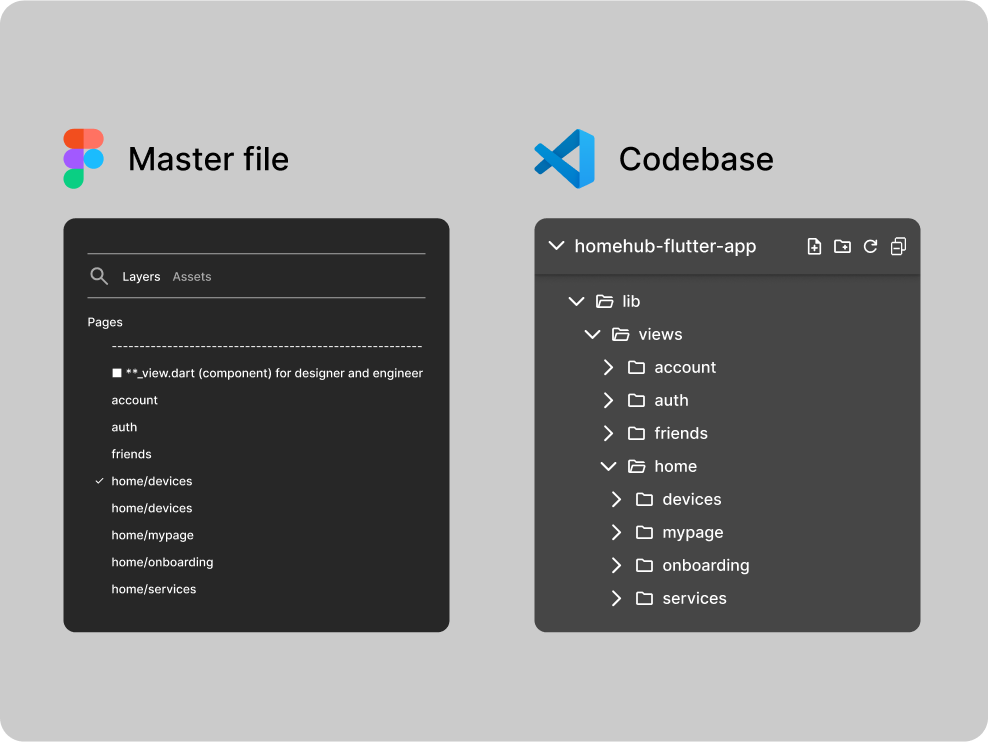
- Align the file structure with the codebase.
- Align the names of view components with the codebase.
- Align layer and component composition with pseudocode-like Flutter implementation.
- Share as documentation with the development team and the whole company.
1. Align the file structure with the codebase.
Figma’s Page units correspond to the folders in the codebase.
2. Align the names of view components with the codebase.
The components correspond to the View files in terms of the Model-View-ViewModel architectural pattern.

3. Align layer and component composition with pseudocode-like Flutter implementation.
In specific, I did the following:
- Aligning the component names with Flutter’s Widget names.
- Assigning names of Auto layout frames to match with SingleChildScrollView, ListView, Row, Column, etc.
- Naming the icon layer to align with the Flutter Icon class.
- Implementing the same logic as the implementation to the extent of Figma’s capabilities.
The last point on the logic representation in Figma is explained with some images in the following.
Depending on the user’s permissions, there is a need to show/hide certain functionalities. In the code, this would typically involve writing conditional statements within the View file, based on the Model or ViewModel.
In the example within the image bellow, I created a Boolean property called canChangeDeviceAddress in the device_setting_view component. This is intended to show/hide the route to the editing address view for some users with limited auth.
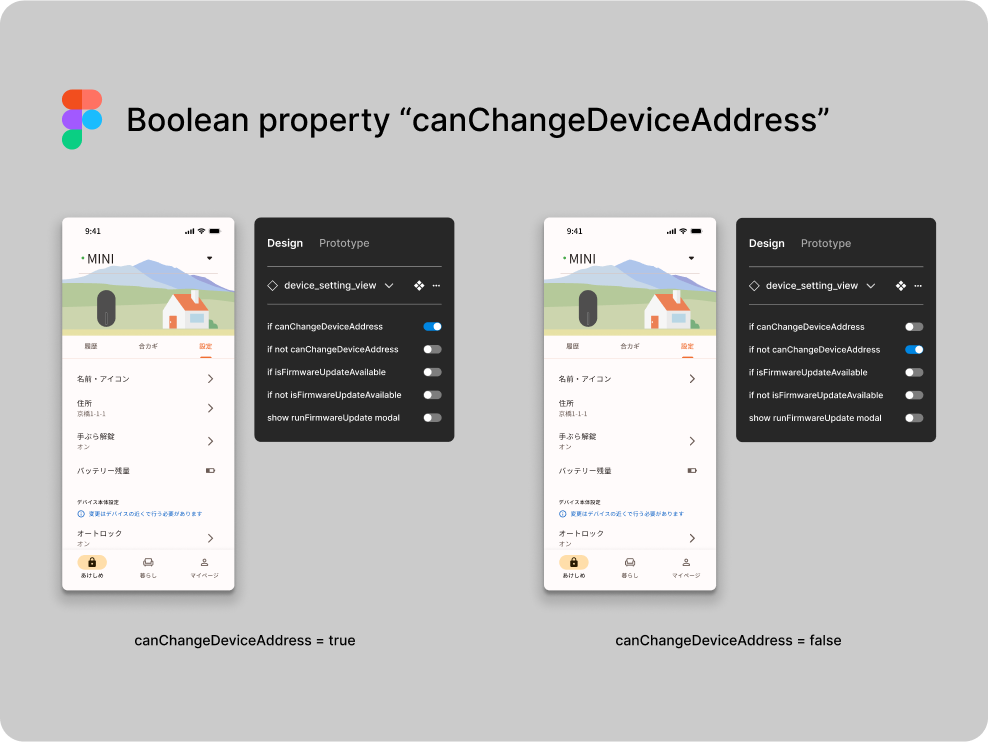
This is a rough excerpt of the corresponding View file, for reference.
...
    ListView(
      children: [
        ListTile(
          title: const Text('名前・アイコン'),
          trailing: const Icon(Icons.arrow_forward_ios_rounded),
          onTap: viewModel.toNameSetting,
        ),
        ListTile(
          title: const Text('住所'),
          subtitle: Text(model.location.address),
          trailing: model.canChangeDeviceAddress
              ? const Icon(Icons.arrow_forward_ios_rounded)
              : null,
          onTap: model.canChangeDeviceAddress
              ? () => router.push(AddressSettingRoute(device: model.device))
              : null,
        ),

        ...
      ]
    )
...
Let’s move on to another example to explain logic representation in Figma, using a modal.
When displaying a modal based on user actions, designers tend to create a separate screen (component/frame) to represent it. However, in code, the modal is written within a single View file.
Using the firmware update process as an example, the following steps are illustrated in the attached image:
- Firmware update available.
- User taps on a List item (ListTile).
- Modal opens.
- User taps on the execute button.
- Loading while firmware update being processed.
- Feedback with SnackBar.
This entire sequence is represented in Figma using a single component.

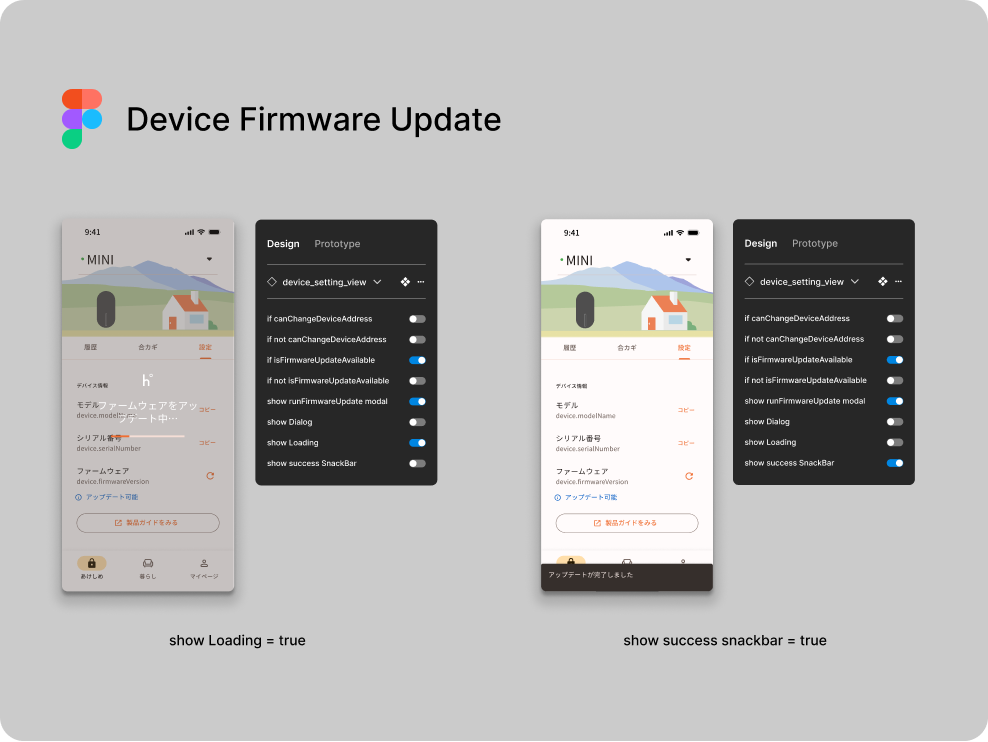
Again a rough referential excerpt of the view file.
		...

    runFirmwareUpdate() async {
				showDialog(...);
        await withLoading(
          title: const Text("ファームウェアをアップデート中…"),
          func: () async {
            await viewModel.runFirmwareUpdate();
            ScaffoldMessenger.of(context).showSnackBar(...);
          }
        );
      }

    return ListView(
      children: [

        ...

        ListTile(
          title: const Text('ファームウェア'),
          subtitle: Text(device.firmwareVersion),
          trailing: model.isFirmwareUpdateAvailable
              ? const Icon(Icons.refresh_rounded)
              : null,
          onTap: model.isFirmwareUpdateAvailable
              ? runFirmwareUpdate()
              : null,
        ),
        if (model.isFirmwareUpdateAvailable)
            Row(
                children: [
                  const Icon(Icons.info_rounded),
                  const SizedBox(width: 8.0),
                  const Text('アップデート可能'),
                ],
            )

      ...
4. Share as documentation with the development team and the whole company.
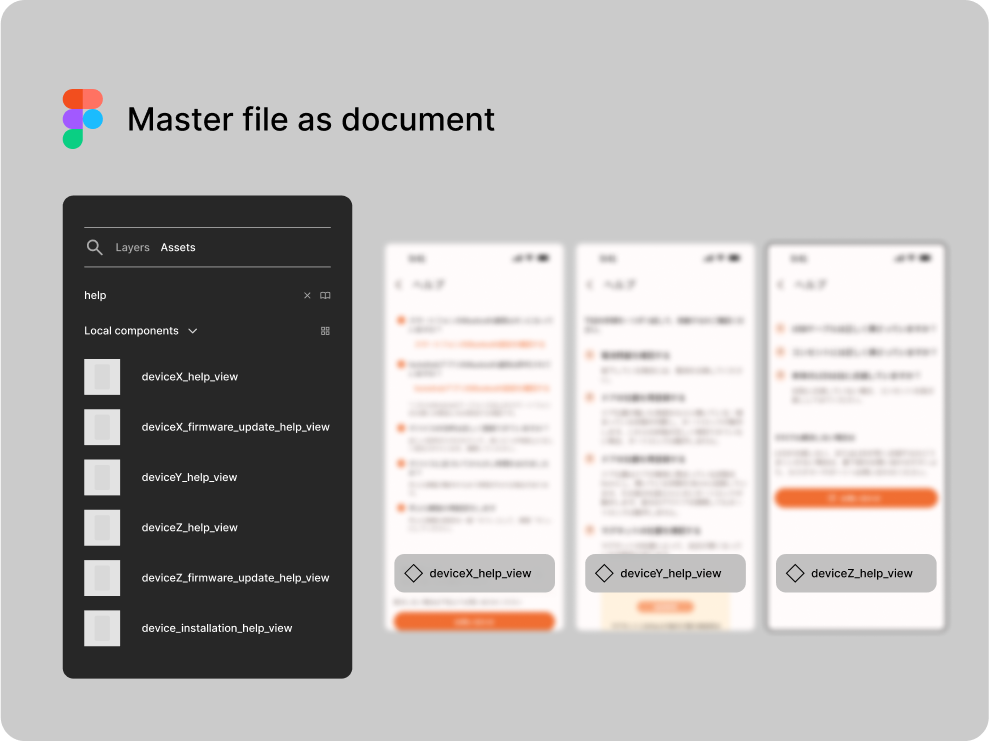
I prepared the pages of all the screens that users would interact, easier to grasp the entire app comprehensively. The document, which can also be used for specification confirmation, is complete.
In addition, as shown in the image below, when you want to see the help page all at once, you can easily find it by searching for the component name in Figma.
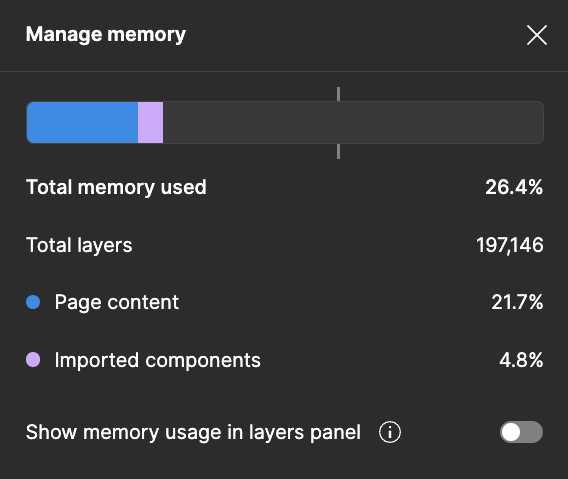
For those who think Figma gets too heavy, isn’t it…?
The number of layers is 197,000+. A MacBook Pro with 32GB memory M2 Pro has no trouble. But when conflicts accumulate and consume too much memory, you won’t be able to merge the branch.
Result
Got a lot of “great work” :)
Whether the Figma master file can continue to maintain up-to-date in the future remains to be seen. Stay tuned.
Side note
- The structure of the master file is divided into three Figma files.
- Assets
- Components / Widgets
- UI / View
- Heavily relied on Material 3.
- Sad to mention
- In Dev Mode, the ascending and descending order of layers is reversed (couldn’t be helped because the concept of layers in drawing and coding is different).
- I used Boolean in components, but I believe that using Variables will be the best practice in the future.
- In the Flutter Icon class, the names of icons may differ from the names in Material Symbols. For example, the icon called Schedule in Material Symbols is named access_time in the Flutter Icon class. It was dull to manually rename icons brought from Figma’s Material Symbols Plugin.